Fylgja Compare Slider
A compare slider stacks two images of the same scene and lets the reader drag a
divider across them, to show a before and after or two versions side by side. The
control is a native <input type="range"> laid over the images, so it is focusable,
works with the arrow keys and touch, and announces its value without any ARIA. The
range position is read in CSS, so the split follows the thumb without JavaScript.
Preview
Drag the handle, or focus it and use the arrow keys.
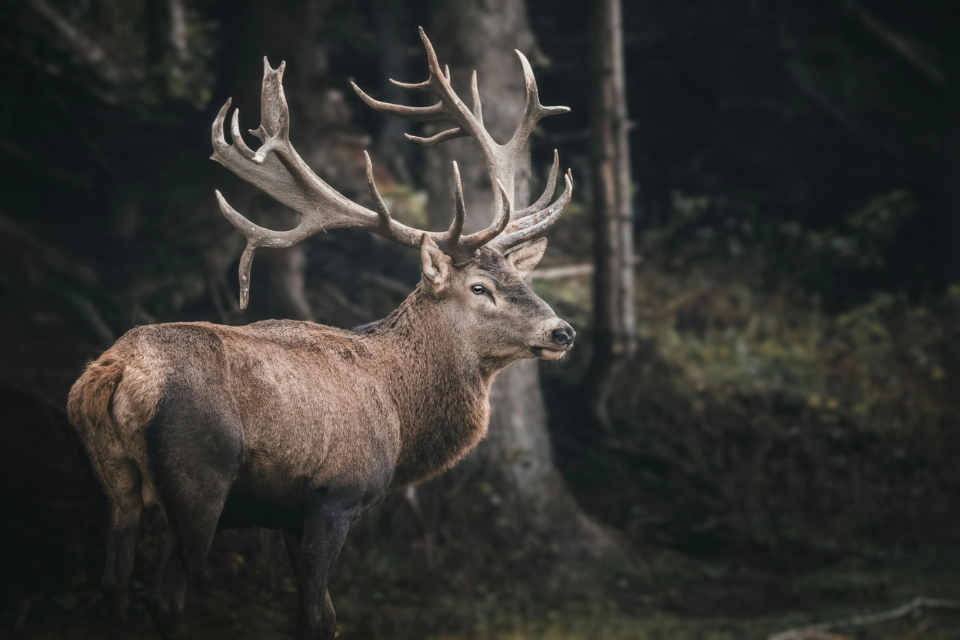
<div class="compare-slider stack rounded" data-compare-slider>
	<img
		class="w-full h-full object-cover"
		src="/images/placeholders/deer-wide.webp"
		alt="Deer in a forest, in color"
		width="960"
		height="640"
	/>
	<img
		class="w-full h-full object-cover"
		src="/images/placeholders/deer-wide.webp"
		alt="The same photo in black and white"
		width="960"
		height="640"
		style="filter: grayscale(1)"
	/>
	<label for="compare-deer" class="sr-only">
		Amount of the color photo shown
	</label>
	<input
		class="h-full"
		type="range"
		id="compare-deer"
		min="0"
		max="100"
		value="50"
	/>
	<span
		class="compare-slider-value align-self rounded"
		style="--align-self: start; --m: 0.75rem; --p: 0.25em 0.6em"
		aria-hidden="true"
	></span>
</div>

<style>
	@property --compare-percent {
		syntax: "<integer>";
		inherits: false;
		initial-value: 0;
	}

	.compare-slider {
		--range-value: 50;
		--compare-line: 2px;
		--compare-handle: 2.5em;
		--compare-color: var(--root-bg);
		--_split: calc(var(--range-value) * 1%);
		/* Firefox measures the thumb against the nearest scroll container, so this must be one */
		overflow: hidden;
		timeline-scope: --range-thumb;
		animation: range-observer linear reverse both;
		animation-timeline: --range-thumb;

		img:nth-of-type(2) {
			clip-path: inset(0 0 0 var(--_split));
		}

		&:dir(rtl) img:nth-of-type(2) {
			clip-path: inset(0 var(--_split) 0 0);
		}

		&::before,
		&::after {
			grid-area: 1 / 1;
			z-index: 1;
			justify-self: start;
			pointer-events: none;
		}

		&::before {
			content: "";
			inline-size: var(--compare-line);
			margin-inline-start: calc(var(--_split) - var(--compare-line) / 2);
			background: var(--compare-color);
		}

		&::after {
			content: "\2194" / "";
			display: grid;
			place-content: center;
			align-self: center;
			inline-size: var(--compare-handle);
			aspect-ratio: 1;
			margin-inline-start: calc(var(--_split) - var(--compare-handle) / 2);
			border-radius: 50%;
			background: var(--compare-color);
			color: var(--root-fg);
			box-shadow: 0 1px 4px rgb(0 0 0 / 0.3);
		}

		&:has(input:focus-visible)::after {
			outline: 2px solid var(--root-fg);
			outline-offset: 2px;
		}

		input {
			--track-color: transparent;
			--track-fill: transparent;
			--thumb-size-x: var(--compare-line);
			--thumb-size-y: var(--compare-handle);
			--thumb-color: transparent;
			--thumb-stroke-size: 0;
			z-index: 2;
			outline: none;
			cursor: ew-resize;
			timeline-scope: none;
		}

		/* form-extend only names the thumb timeline on the WebKit thumb */
		input::-moz-range-thumb {
			view-timeline: --range-thumb inline;
		}

		.compare-slider-value {
			--compare-percent: calc(var(--range-value));
			z-index: 1;
			counter-reset: percent var(--compare-percent);
			background: var(--compare-color);
			color: var(--root-fg);
			font-variant-numeric: tabular-nums;
			pointer-events: none;
		}

		.compare-slider-value::after {
			content: counter(percent) "%";
		}
	}
</style>
Usage
- Wrap two images and a range input in an element with
stack, so they share one grid cell. The first image is the base, the second is clipped by the slider. - Keep both images the same size and aspect ratio, so the two halves line up.
- Give the range
min="0",max="100", and a startingvalue, and name it with a visually hidden<label>. - Add the
<style>block. It moves the--range-valuefrom form-extend up to the wrapper withtimeline-scope, so the second image, the divider line, and the percentage label can all read it. The::-moz-range-thumbrule names the same timeline in Firefox, which form-extend only sets on the WebKit thumb.
Restyle the handle with --compare-handle and the divider with --compare-line.
--compare-color sets the color of both. Keep the range thumb thin: form-extend
measures its position including its width, and a wide thumb makes --range-value
drift from the real value towards the ends.
Anatomy
| Part | Responsibility |
|---|---|
.compare-slider.stack |
Layers every child in one grid cell and shares --range-value. |
First <img> |
The base image, visible on the start side of the divider. |
Second <img> |
The compared image, clipped from the start edge up to the divider. |
::before |
The divider line that follows the thumb. |
::after |
The round handle, drawn at the split. |
<input type=range> |
The control, stretched over the images with a transparent track and thumb. |
.compare-slider-value |
The visual percentage, written with a CSS counter. |
Accessibility
- The range input is the only control, so it gets the keyboard behavior for free: the arrow keys move the divider, and Home and End jump to either side.
- Name the range by what it changes, such as “Amount of the color photo shown”, not “Slider”.
- Give both images an
altthat says what is different, so a screen reader user knows what is being compared without seeing it. - The percentage label is
aria-hidden, since the range already announces its value.
Browser support
The CSS only version relies on scroll-driven animations and timeline-scope. In a
browser without them the split stays at the starting --range-value. Add this
script once per page to move the split on input there. It only runs where
timeline-scope is missing.
<script>
	if (!CSS.supports("timeline-scope: --a")) {
		for (const slider of document.querySelectorAll("[data-compare-slider]")) {
			const range = slider.querySelector("input[type=range]");
			const update = () => slider.style.setProperty("--range-value", range.value);
			range.addEventListener("input", update);
			update();
		}
	}
</script>
Related: Range, Carousel, Gallery.
FAQ
Does the compare slider need JavaScript?
Not in browsers with scroll-driven animations. form-extend tracks the thumb and exposes its position as --range-value, and the slider reads that to clip the top image. Older browsers need the small fallback script from the Browser support section.
Can I compare something other than images?
Yes. Any two layers of the same size work, such as two pictures, two videos, or two styled blocks of markup. The second layer is the one that gets clipped.
How do I start at a different split?
Change the value attribute on the range input. Also update the --range-value on the wrapper, so browsers without scroll-driven animations start at the same split.
Why is the percentage hidden from screen readers?
The range input already announces its value. Reading the visual label as well would say every number twice.